Quickstart: Drag/zoom the map to show the area you want to search. (Mobile users: press the keyboard button) Enter your query and press [Search] or [Enter]. You can also zoom into an area of interest and press [Search] without typing anything to produce a list of everything in the current map view.
By default, a search returns all features with names that contain the text you entered. You can only search for feature names: do not enter addresses or states. The database includes towns, mountains, lakes, streams, major roads, parks and more. Select any search result on the list to view the it on the map. Then press the maps button to see a list of all available maps and browse through any that interest you.
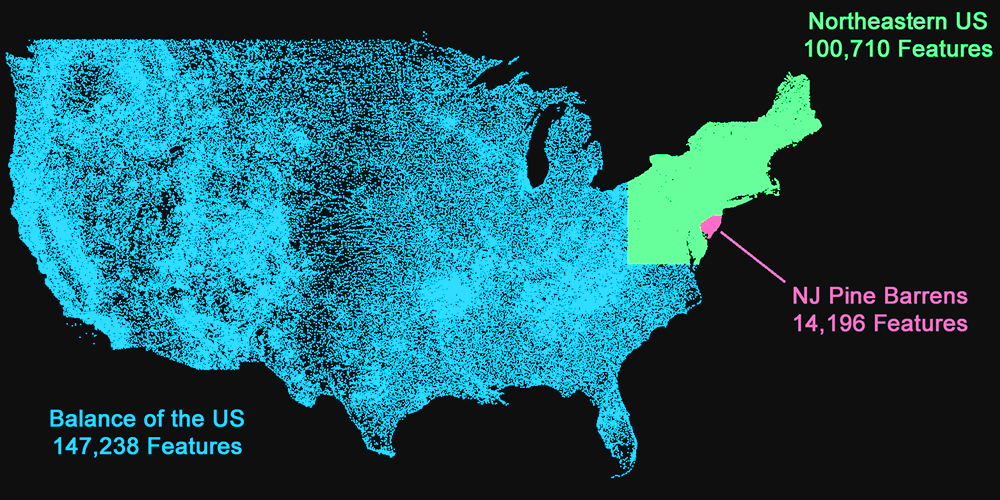
Map coverage: boydsmaps covers the Northeastern United States. High performance, unique maps need to be hosted on our own server and we simply can't afford to cover a larger area. We also have full US mapping directly from USGS servers which we'll continue to offer as long as they're compatible and have acceptable performance. But if there are issues, they could be discontinued at any time. Our focus is offering our own maps of the Northeast US.
The Pine Barrens of New Jersey are home to boydsmaps and you'll find extreme coverage with a total of 14,196 database records from many sources. The Northeast US also has extensive coverage, with 100,710 records including cities, highways, parks, plus USGS GNIS (Geographic Names Information System) data. The balance of the US is represented with 147,238 records, including cities, highways and many geographic features. See the credits tab for detailed information of data sources.
The mobile interface consists of an upper and lower window with a row of buttons - the dock - in the middle. The map is always in the upper window while the contents of the lower window are determined by the buttons in the dock. Use the up and down buttons to move the dock for a full screen view of either the upper or lower window.
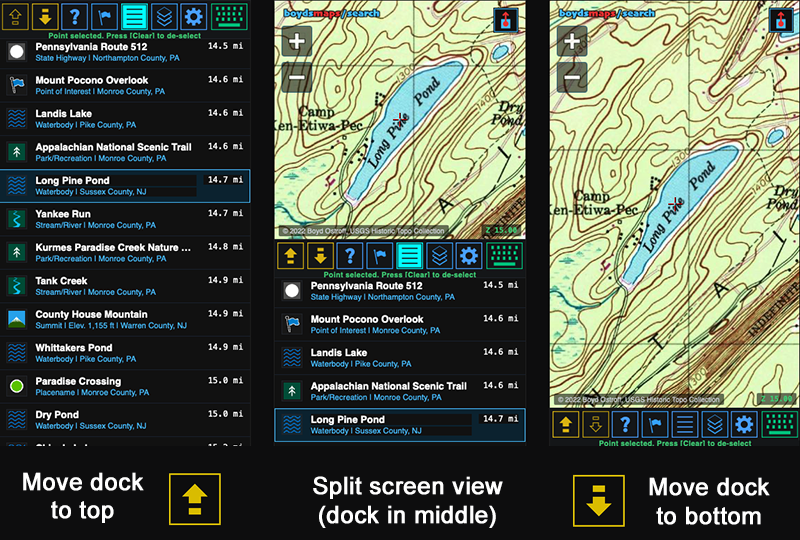
If you're currently using a phone, press the up button right now to continue reading this help file in a fullscreen window.
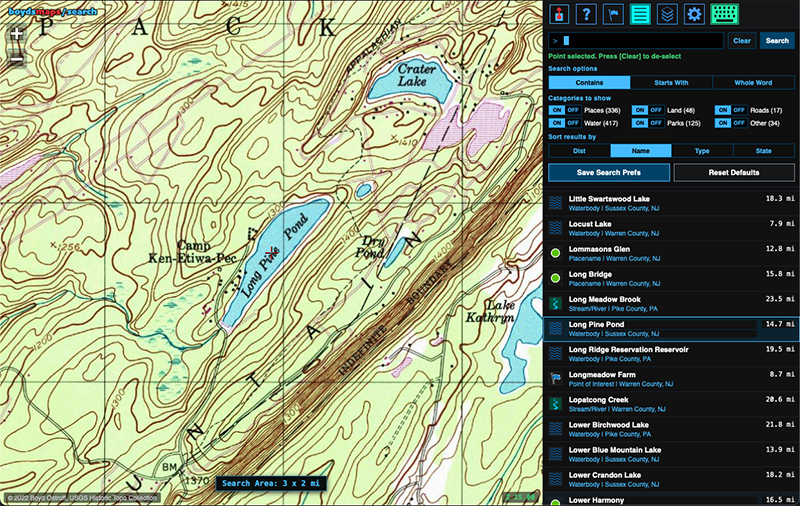
The basic desktop interface puts all of the search functions in a sidebar with the dock at the top and dedicates the rest of the screen to the map (there's also an advanced desktop interface which will be covered later).
Note: You can also open the help files in a separate tab here: boydsmaps.com/search/docs/

A number of functions are combined under this button which is on the left end of the dock in desktop mode or in the top right corner of the map in mobile mode. You can share links to either a specific search result or to the full list of results. Use the query box to paste any text you want to search for (the custom keyboard driver doesn't support pasting in the main search window). You can also backup/restore your app preferences, take a screenshot of the map and open maps of the same location on several other sites.

Shows this help window. You can also open the help window in a separate browser tab at this link boydsmaps.com/search/docs/

You can add any search result to your POI by simply clicking its icon. This will highlight it with a magenta outline and the flag on the POI button will change from blue to red. Remove results from your POI list by clicking the icon again: the magenta outline will go away. You can have up to 2048 POI, which are auto-saved whenever you make changes. Export your POI list as a standard waypoint .gpx file which is compatible with Garmin software and devices as well as many other apps.

Here's where the results of your searches will appear. Select any result to see a map of the location. Press [Clear] to de-select a result. Pressing [Clear] again will clear all results from the list, so you can perform a new search.

This button shows a menu of all available maps for the selected search result. You will also see a list of today's trending maps in the region, based on current user activity. Select any maps of interest and explore them here.

The app should automatically configure itself for your device, but you can manually select either mobile or desktop mode here (note that desktop mode requires a physical keyboard however). For mobile users, this is where the search and sorting preferences are set.
Selecting Advanced mode under Features and Services unlocks many additional options for users who want to customize the interface. Desktop users can enable the floating window interface, which is best used with your browser in fullscreen mode. The map becomes your desktop and a resizable floating window can be placed anywhere the user desires. Double-clicking any search result opens another floating window with feature details while a third floating window provides a classic 80 character x 24 line terminal with an advanced command line interface (CLI) for performing targeted searches and exporting the results.
Normally the app opens to your last location, but you can also configure it to open with the full US map view here. By default, maps and zoom levels are automatically selected as you search and select results. If you would prefer full manual control, turn Auto-zoom OFF and Lock Active Map ON here. The map and zoom level will then remain the same unless you change them. A "friendly" map menu is the default, with longer map names and descriptions plus trending maps. You can disable these features if desired by turning Trending Maps and Long Map Names OFF. This will result in a maps menu that is very similar to the main app. Turning Large crosshairs ON will show the same crosshairs as the main boydsmaps app. Finally, turning ON the Open in Main App setting will open maps of selected search results in the main boydsmaps app instead of the search app.
Keyclick sounds are turned OFF by default but you can try them and see what you think. We were unable to get consistent results across different devices/browsers and didn't want to spend further time, but left it as a disabled option. Normally, if your search produces a very large number of results you'll see a warning and need to press a button to continue. You can turn these warnings off here, if you're certain that your browser can handle thousands of results. There's a hard limit of 8192 search results regardless however. Finally, you can enable the terminal and command line interface (CLI) for mobile devices here. This lets you perform targeted searches and export results, but a small phone screen is more limited than the standard 80x24 desktop terminal.

On a mobile device, this button shows the virtual keyboard. The search app has its own custom keyboard and driver which bypasses all the standard operating system features (such as autocomplete, suggestions, emoji) to present a simple basic keyboard that is identical on all mobile devices. For desktop users, input from your physical keyboard is enabled by default. Clicking the keyboard button in desktop mode will hide the input box and search options, devoting the full window to the search results.

This button only appears when the floating window is selected under Advanced Features and Services in desktop mode. It will open a standard 80 character x 24 line terminal where users can enter powerful commands for targeted searches. This mode is fully documented under the Advanced tab in the help window.
Zoom the map out until it shows the whole United States. An easy way to do this is to push the [Clear] key. (Mobile users: press the keyboard button). You may need to press [Clear] more than once, but you should finally see this message: "View reset: zoom the map to the area you want to search". Desktop users can either click the [Clear] button next to the text input box or press the [Clear] key on your physical keyboard.
The search app uses a custom keyboard driver for both the mobile and desktop apps. It directly reads keypresses and bypasses the standard operating system text input functions. Don't tap or click the text input field, the app is always waiting for you to type something. For this example, type the following then press [Search] or [Enter]
washingtonThis will search the whole database for all features that contain "washington" anywhere in their name. You should get 228 matches. Also note that upper/lower case makes no difference in the search app. Capitalization is simply ignored, so we will use all lowercase text in our examples.
Now look at the six category "switches" (Mobile users: press the gear button)
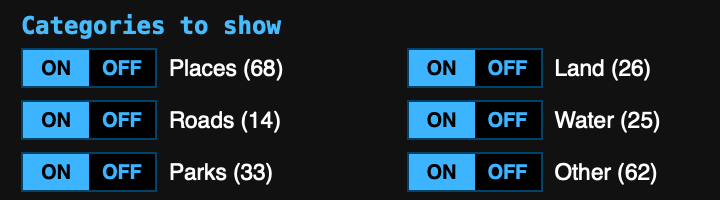
These provide a simple way to refine your search results. If you are only interested in cities named "washington", you could turn off all the switches except "Places". Try flipping different switches and notice how the results change. In the desktop version, you will see the changes immediately, in the mobile version you need to switch between the gear and results buttons.
Now, let's take a look at the differences between the three different search options. (Mobile users: press the gear button)

The default search method is [Contains]. This finds all feature names that contain the text you entered. You can see some examples of this here: in addition to all the names that are just "Washington", this search finds Washingtonville and Washingtonian.
Click/tap the [Starts With] button, then press [Search] to update the results with this new option. Notice how it finds far fewer results than [Includes] - only 130 vs 228 - because it rejects names where "washington" isn't at the beginning.
Finally, click the [Whole Word] button and then click [Search] again to see the results of the final search option. This is similar to [Contains] but it rejects the variations like Washingtonville, so it finds 8 less results. Most of the time, you will just want to use the default [Contains] search option, but these others are available.
Now let's look at the sorting options

The default option is [Dist] but that is not very useful in this example. It's the distance from the center of the map, as indicated by the crosshairs. We began by pressing the [Clear] button to show the full US map. This had the effect of centering the crosshairs on Kansas City, so we are seeing each result's distance from there. A more useful example might have been to first set the crosshairs to your current location on the map. Then the search would show how far away each results is from you.
But this raises another important point: all searches are confined to the view of the map you are currently looking at. This is why we zoomed the map all the way out initially, because we wanted to search the full US. You can see this in action by zooming the map to some smaller region, such as the Southwest. The results will vary depending on your screen size and how far you zoom, but in a quick test, that reduced the number of search results to only 22.
But moving on with our example, sorting by [name] is another way of looking at the search results. Again, the nice thing about the desktop version is the instant feedback you get when clicking the different sort options (no need to repeat the search, these buttons work immediately).
Sorting by [Type] will group the results by approximately 90 different feature types. These are more specific than the six categories we looked at above, you can see a full list of feature types by clicking the [Advanced] tab above.
The [State] option groups results by states, and then by counties. Combined, all of these search and sort options give you a number of different ways to look at the database. But you can drill even deeper with the advanced command line interface: see the [Advanced] tab for more information on that.
One additional point about all the options we've just discussed. Normally, anything you change here will only apply to your current search and pressing the [Clear] key will automatically reset all the options to their defaults. However (for example), if you always want to sort results by name or if you never want to see roads in the results, you can set those options here and then click the [Save Search Prefs] button. That will make your changes the new defaults until you change them. The [Reset Defaults] button is a quick way to return all these settings to their "factory defaults" after making changes.
Note: the search app was just introduced and is still in beta. This help file is still under construction but should be finished soon. In the meantime please see the detailed tutorials in this thread at the boydsmaps forum:
https://forums.njpinebarrens.com/threads/introducing-boydsmaps-search.15446/